
If you’ve ever owned an X Rocker chair, you know it’s not just a seat—it’s a gateway to a more immersive gaming or movie experience. But sometimes, the built-in vibration feature doesn’t work out of the box, or you’re not sure how to activate it. Maybe you want to upgrade your chair’s vibration, or you’re curious about how to make the most of this function. This guide will walk you through everything you need to know about making your X Rocker chair vibrate, including troubleshooting, upgrades, and practical tips. By the end, you’ll understand how to unlock the full potential of your chair, whether you’re a beginner or looking for advanced tweaks.
Understanding The X Rocker Chair Vibration Feature
The vibration function in X Rocker chairs is designed to make games, movies, and music more exciting. When you feel the chair rumble in sync with explosions or bass-heavy songs, it adds a new layer to your entertainment. This tactile feedback helps you feel more “inside” the action, rather than just watching or listening. For example, in a racing game, the chair can vibrate when you drive over rough terrain, making the experience feel more realistic.
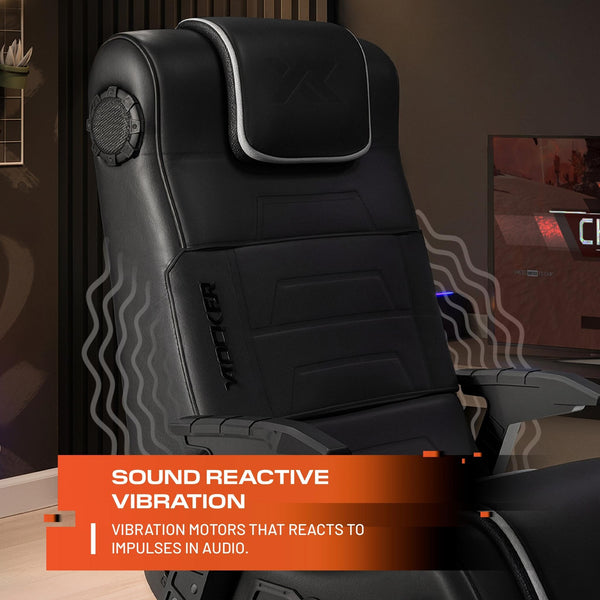
Most X Rocker chairs use audio-driven vibration motors. This means the vibration is usually triggered by the sound signals sent to the chair, often the low frequencies (like bass). The motors are small devices, similar to those used in game controllers but larger and more powerful, mounted inside the chair—often under the seat or in the backrest. The louder or “deeper” the sound, the stronger the vibration.
If your chair isn’t vibrating, it’s often because the audio connection isn’t set up properly or the feature is turned off in settings. Some users are surprised to learn that simply raising the bass or volume can activate the motors. Not all X Rocker chairs have vibration. Check your model’s specs or look for the vibration toggle button (often labeled as “Vibration” or “Rumble”) on the control panel. If you don’t see any vibration controls, your model may only have speakers.
An interesting detail: Some models have a light on the control panel that glows or changes color when the vibration is active, which helps you quickly check if the feature is working.
What You Need Before You Start
Before you can make your X Rocker chair vibrate, it’s important to have:
- An X Rocker chair with the vibration feature (not all models have this)
- Power supply (usually an AC adapter included with the chair)
- Audio source (gaming console, TV, PC, or mobile device)
- Audio cables (RCA, 3.5mm, or wireless transmitter, depending on your setup)
- Space to set up your chair, ideally near your screen or console
It’s always a good idea to double-check your user manual to confirm the vibration capability. The manual will also show the exact location of vibration controls and ports. You can usually download manuals from the official X Rocker website if you’ve lost yours.
Some beginners forget that power is required for vibration to work. Even if your speakers run on battery, the motors often need the AC adapter plugged in. If you are missing the original adapter, using a replacement with the wrong voltage can prevent the vibration from working, so always match the original specs.
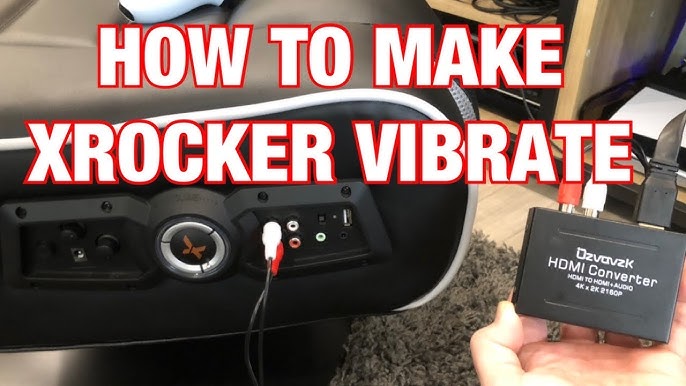
If you’re connecting to a modern console or TV, you may need an adapter that converts digital audio (optical or HDMI) to analog (RCA or 3. 5mm), since the chair usually only accepts analog input. These small details can make a big difference in setup success.
How The X Rocker Vibration System Works
The vibration system in most X Rocker chairs uses audio signals to activate the vibration motors. Here’s a simple breakdown:
- Audio Input: The chair receives audio, typically through a cable or wireless transmitter.
- Amplifier: The built-in amplifier boosts the audio signal.
- Vibration Motors: Low-frequency sounds (bass) trigger the motors, causing vibration.
- Controls: Some chairs have dials or buttons to adjust vibration strength.
This means if the audio is too quiet, or the bass is weak, the vibration may not activate. For example, if you’re watching a TV show with mostly dialogue, you might not feel anything. But during a movie with explosions, the chair will react.
Some users expect the vibration to work at all times, but it depends on the sound content.
Understanding this system helps you troubleshoot problems. For example, if your chair is connected via Bluetooth but you don’t feel vibration, check whether the Bluetooth connection is sending the full audio range, including bass. Some wireless connections compress or filter out bass to save bandwidth, which can affect vibration.
Another common beginner mistake: plugging the audio cable into the “output” of the chair instead of the “input.” Double-check that your cables match the right ports.
Step-by-step Guide: How To Make Your X Rocker Chair Vibrate
Let’s dive into the practical steps to set up and activate vibration.
1. Position Your Chair And Plug It In
Place your X Rocker chair near your gaming or entertainment setup. Leave enough room behind the chair for cables and airflow. Plug in the power adapter to a wall outlet and connect it to the chair’s power port. The power light should turn on.
If your room has limited outlets, consider using a surge protector to protect your electronics.
2. Connect Audio Source
You have a few options, depending on your devices:
- Wired (3.5mm or RCA): Connect the audio cable from your device’s headphone jack or audio output to the chair’s input. Make sure you push the connectors in all the way.
- Wireless: Use the included wireless transmitter. Connect the transmitter to your device and pair it with the chair (follow the pairing instructions in your manual). Some transmitters have a pairing button or need to be set to the same channel as your chair.
If you use a console like PlayStation or Xbox, you might need to connect the audio output from your TV or use an adapter. Many newer TVs only have optical audio out, so a digital-to-analog converter is needed. These converters are inexpensive and widely available online.
For mobile devices, you may need a headphone-to-RCA cable, or a USB-C/Lightning to 3. 5mm adapter if your phone doesn’t have a headphone jack.
3. Adjust Audio And Vibration Settings
Turn on your chair’s audio system. Play music or a game with strong bass. Use the chair’s control panel to adjust:
- Volume: Make sure it’s not too low. Some users mistakenly set the volume high on their chair, but low on their console or TV, which gives weak vibration.
- Vibration (Rumble) Dial: Increase the vibration level. Some models have a dedicated vibration knob or button. Others use a combined bass/vibration dial.
- Bass: If your chair has a bass dial, turn it up. More bass means stronger vibrations.
If you notice distortion, reduce the volume slightly. Some motors “buzz” if overloaded.
A useful tip: Try playing a test track with heavy bass (search for “bass test” on YouTube) to check that vibration is working before jumping into a game or movie.
4. Test The Vibration
Play a song or game with explosions, gunfire, or heavy bass. Sit in the chair and feel for vibration. If it’s weak, try increasing the volume or bass. Make sure the vibration feature is switched on. If your chair has a remote, check its battery and settings as well.
Remember that vibration is most noticeable during loud or low-frequency sounds. If you mostly use the chair for casual TV, you might not notice the effect unless you adjust the audio settings.
5. Troubleshooting: If Your Chair Doesn’t Vibrate
If you follow the steps and still don’t feel vibration, check these common issues:
- Audio signal too weak: Some games or movies have little bass. Try a bass-heavy track to test.
- Wrong input selected: Make sure you’re using the correct audio input (AUX, RCA, or wireless).
- Power issue: Confirm the chair’s power light is on. Try another outlet or adapter.
- Vibration not enabled: Find the vibration button or dial and make sure it’s not set to zero.
- Loose cables: Check all connections are snug.
A surprising insight: Many beginners forget to check the chair’s dedicated vibration dial (sometimes hidden on the side), or they use a wireless connection that doesn’t transmit bass properly. Wired connections often give stronger vibration.
Another detail: Some TVs and game consoles have “night mode” audio, which reduces bass to avoid disturbing others. Turn off these modes for full vibration.
Upgrading And Enhancing X Rocker Vibration
If you want stronger or custom vibration, there are ways to upgrade your chair. Here are some options:
Add External Bass Shakers
Some users install bass shakers (like ButtKicker or Dayton Audio units) under or inside the chair. These devices connect to an amplifier and deliver powerful vibration. You’ll need basic DIY skills, but it can transform your chair. For example, a bass shaker can make racing games feel like you’re driving over bumps, or make action movies shake your whole body.
Use A Dedicated Amplifier
A weak amplifier is a common reason for poor vibration. Connecting your chair’s vibration motor to a dedicated amplifier (instead of the built-in one) can boost power and response. Make sure you match the motor’s voltage and wattage ratings. Using an amp with “subwoofer out” is ideal, as it sends only bass signals to the shaker.
Software Solutions
On PC, you can use programs that send low-frequency signals (LFE) to your chair via a separate audio output. This lets you customize which sounds trigger vibration. Some popular software includes Voicemeeter or Equalizer APO, which can redirect and boost bass frequencies.
Comparison: Stock X Rocker Vibration Vs. Upgraded Solutions
Here’s a simple comparison of typical vibration setups:
| Setup | Strength | Customizability | Difficulty |
|---|---|---|---|
| Stock X Rocker Vibration | Moderate | Low | Easy (plug and play) |
| Bass Shaker Upgrade | High | High | Medium (DIY skills needed) |
| External Amplifier | High | Medium | Medium |
Upgrading isn’t required, but it’s the secret behind the most intense “theater-style” setups. For families or shared spaces, consider adding a vibration on/off switch for quick control.
Common Problems And How To Fix Them
Even with everything set up, you might run into issues. Here’s how to handle them:
Weak Or No Vibration
- Increase bass: Low vibration often means not enough bass. Use a bass booster or EQ on your device.
- Check audio source: Some sources filter out bass to headphones. Try plugging into a different output.
- Power supply: Weak or unstable power can reduce vibration strength.
- Test with different content: Sometimes, the game or movie itself has little bass. Try a different source to rule this out.
Random Vibration Or Buzzing
- Poor connections: Loose cables or jacks can cause unwanted buzzing.
- Interference: Wireless signals can sometimes interfere. Try wired connections if this happens.
- Nearby electronics: Devices like routers, phones, or microwaves can sometimes cause interference. Move them away from the chair’s power supply.
Chair Vibrates All The Time
- Sensitivity too high: Lower the vibration dial. Some chairs pick up background noise as vibration.
- Ambient noise: High background noise (like a fan or AC unit) picked up through the microphone input can also cause vibration.
Audio Plays, But No Vibration
- Output channel issue: Some games output only to speakers, not the headphone jack. Check audio settings.
- Check sound modes: Make sure your audio output is set to “Stereo” or “Headphone,” not “Surround” or “5.1,” unless your chair supports it.
Surprisingly, many users overlook updating their console or PC’s sound settings to “Stereo” or “Headphone” mode, which often solves vibration problems. Also, always check for firmware updates for your gaming device, as these can fix audio bugs that affect vibration.
Credit: www.youtube.com
Advanced: Modifying Your X Rocker For Custom Vibration
If you love DIY, you can take things further:
Installing Aftermarket Vibration Motors
Buy extra vibration motors (look for units designed for gaming chairs or home theater seats). Open the chair, disconnect the old motor, and wire in the new one. Secure it firmly to the frame for best results. Placement matters—mount the motor to a solid part of the chair, not just the foam, to feel the effect more.
Custom Control Systems
Use an Arduino or similar microcontroller to create custom vibration patterns. This is an advanced project but lets you sync vibration to specific game events. For example, you can use sensors or software to trigger vibration only when you get hit in a game, or match the rhythm of music.
Multi-zone Vibration
Install multiple motors in different parts of the chair (seat, back, sides). Connect each to separate outputs for a full-body effect. You’ll need good soldering and wiring skills. Multi-zone setups are popular in flight simulators and racing rigs, where different parts of the chair vibrate for different effects (like engine rumble vs.
road bumps).
Table: Diy Upgrade Options
| Upgrade Type | Parts Needed | Skill Level | Estimated Cost |
|---|---|---|---|
| Bass Shaker | Bass shaker unit, amp, wiring | Intermediate | $70-$200 |
| Extra Motors | Vibration motors, tools | Intermediate | $20-$50 |
| Custom Controller | Arduino, code, wiring | Advanced | $30-$100 |
These upgrades can make your chair stand out, but always check warranties before opening your chair. If you’re not comfortable with electronics, ask for help from someone with experience.
A non-obvious tip: You can use foam padding or rubber mounts to reduce noise from vibration motors, making the effect strong but quiet.
Safety And Maintenance Tips
To keep your X Rocker chair working safely and smoothly:
- Don’t overload the motors. If you add aftermarket motors, make sure your power supply can handle the extra load. Exceeding the recommended voltage can burn out the electronics.
- Check cables regularly. Loose or frayed wires can cause shorts or weak vibration. Replace damaged cables immediately.
- Keep liquids away. Spills can damage the electronics. If you spill something, unplug the chair and let it dry fully before use.
- Clean gently. Use a soft, dry cloth for the control panel and connectors. Don’t spray cleaner directly onto the electronics.
- Don’t run at max power all the time. Prolonged use at high intensity can reduce the lifespan of motors. Take breaks to let the motors cool down.
Pro tip: Sometimes, vibration becomes weaker over time due to dust or loose connections inside. Carefully opening the chair and cleaning the contacts can restore the original power. If you hear rattling, check for loose screws or wires.
Another insight: Using a power strip with surge protection can prevent electrical spikes from damaging your chair’s amplifier or motors.

Credit: www.ebay.com
Real-world Examples
- Gaming: In games like Call of Duty or Forza Horizon, vibration adds impact during explosions or crashes. Players often boost bass for a stronger effect. Racing games especially benefit, as every bump and crash becomes more intense.
- Movies: Action scenes in movies feel more intense when the chair vibrates with every explosion. Some users create “movie night” setups where the chair’s vibration is part of the experience.
- Music: Fans of EDM or hip-hop enjoy the vibration during bass drops. Some even use X Rocker chairs as “subwoofer seats” for music listening sessions.
Interestingly, many users report that turning up the vibration just a little—not to the maximum—creates a more realistic and enjoyable effect. Too much vibration can become distracting rather than immersive. You want to feel the sound, not lose focus on the game or movie.
A less obvious example: Some people with hearing difficulties use the vibration feature to “feel” the action, adding another layer to their entertainment.
How X Rocker Vibration Compares To Other Brands
X Rocker is one of the most popular gaming chair brands with built-in vibration. But there are alternatives:
| Brand | Vibration Feature | Audio Quality | Price Range |
|---|---|---|---|
| X Rocker | Standard (audio-driven) | Good | $100-$300 |
| GTRacing | Optional (add-on) | Average | $150-$350 |
| ButtKicker | High-end (separate unit) | Excellent | $200-$500+ |
X Rocker’s main advantage is the all-in-one design, but serious enthusiasts sometimes prefer aftermarket solutions for more control and power. ButtKicker and similar brands are often used in home theaters and sim racing rigs, where vibration is a key part of the setup.
One thing to note: X Rocker chairs are generally easier to set up for beginners, while other brands may need more technical know-how.
Frequently Asked Questions
How Do I Know If My X Rocker Chair Supports Vibration?
Check your chair’s user manual or the control panel for a vibration button or dial. If you see “Vibration” or “Rumble” controls, your model supports it. You can also look up your chair’s model number on the X Rocker website for full specifications. Some chairs have small icons or diagrams near the controls—look for a wavy line or “rumble” symbol.
Why Isn’t My X Rocker Chair Vibrating Even When Connected Properly?
The most common reasons are low audio volume, not enough bass in the signal, or the vibration control set to zero. Try playing a song with heavy bass and make sure the vibration dial is turned up. Also, check all cables are firmly connected and power is on.
Another often-missed reason: If you’re using a TV with “internal speakers” enabled, the audio output might be muted on the external jack. Set your TV to output sound to “external speakers” or “headphones.”
Can I Make The Vibration Stronger Than The Default?
Yes, by connecting your chair to an external amplifier or installing a bass shaker unit. This requires some DIY work. You can also boost the bass output from your device, but avoid running at maximum power for long periods to protect the motors. Some users add a “bass boost” EQ setting on their PC or console for a stronger effect.
Does Wireless Connection Affect Vibration Strength?
Sometimes. Wired connections usually provide stronger and more consistent bass, which means more vibration. Wireless audio can lose some low-frequency signals, reducing the effect. For the best results, use a direct cable connection.
If you must use wireless, check if your transmitter supports full-range audio, and keep the transmitter close to the chair to avoid signal loss.
Where Can I Find More Information Or Replacement Parts?
The official X Rocker website has manuals, FAQs, and links to replacement parts. For DIY upgrades, communities like Reddit’s r/gamingchairs and YouTube tutorials are helpful. For technical details on audio-driven vibration, see this Wikipedia article on bass shakers.
If your chair is out of warranty, third-party electronics stores can provide replacement vibration motors and amplifiers.
Final Thoughts
Bringing your X Rocker chair’s vibration feature to life can make a big difference in how you experience games, movies, and music. The process is usually straightforward: connect the chair, adjust the settings, and enjoy. If you want more, there are many ways to boost or upgrade vibration, from simple bass tweaks to advanced DIY projects.
Remember to keep safety in mind and check your chair’s capabilities before making changes. With the right setup, your X Rocker can become the center of your entertainment world, making every sound and explosion feel real. Whether you keep it simple or go for a full custom upgrade, the key is experimenting with settings until you find what feels best for you.
Don’t be afraid to try new setups or ask for advice from the gaming community—sometimes, one small adjustment can completely change your experience.
Credit: www.jumpusapark.com