
Setting your Nest Thermostat to hold a temperature is a simple idea, but for many homeowners, it can feel confusing in practice. Most people buy a smart thermostat like Nest to save energy and money, but sometimes you want your home to stay at one steady temperature—maybe guests are coming, your schedule is changing, or you just want to sleep without temperature swings. The good news is, Nest Thermostats do offer a way to “hold” a temperature, but the process is different from old-style thermostats. If you’ve ever wished for clearer answers on how to use this feature, you’re in the right place.
In this article, you’ll find a complete, step-by-step guide to setting, adjusting, and troubleshooting the temperature hold on your Nest Thermostat. You’ll learn about the differences between Eco Mode, Schedule, and Hold, and see practical examples. We’ll go beyond the basics and cover common mistakes, advanced tips, and even how the Nest compares to other smart thermostats for holding temperature. By the end, you’ll feel confident making your Nest Thermostat work exactly the way you want—no more guessing, no more wasted energy.
Understanding How Nest Thermostat Controls Temperature
Before you set a hold, it helps to know how Nest Thermostats usually work. Unlike old thermostats that just keep your home at one temperature, Nest is built to adjust automatically. It uses schedules, sensors, and learning algorithms to save energy.
There are three main ways Nest controls your home’s temperature:
- Automatic Schedule: Nest learns your patterns and changes the temperature during the day.
- Manual Changes: You can set a new temperature, but by default, it only lasts until the next scheduled change.
- Eco Mode: Nest lowers (or raises) the temperature when you’re away to save energy.
But sometimes, you want to pause all the smart features and just keep the temperature steady. That’s where the temperature hold comes in.
What Does “hold Temperature” Mean On Nest?
A hold temperature means your thermostat will keep your home at the temperature you set, ignoring the usual schedule. It’s helpful when:
- You’re on vacation and want to keep pipes from freezing.
- Guests are visiting and you want comfort all day.
- You’re working from home on a day you usually aren’t.
- You want to override the schedule for a party or event.
Unlike older thermostats with a simple “hold” button, Nest uses a feature called Hold Temperature or Temperature Hold. On some models, it’s called Manual Hold or Hold Until.
How Is Hold Different From Schedule And Eco Modes?
Here’s how the main temperature control modes compare:
| Feature | What It Does | When to Use |
|---|---|---|
| Schedule | Changes temperature based on set times or learning | Daily routines, energy savings |
| Eco Mode | Saves energy when you’re away | Vacations, long absences |
| Hold Temp | Keeps the temperature steady until you change it or a set time ends | Special events, schedule overrides |

Credit: support.google.com
Types Of Nest Thermostats And Hold Features
Not all Nest Thermostats offer the same options for holding temperature. There are three main Nest models:
- Nest Learning Thermostat (3rd Gen and earlier)
- Nest Thermostat E
- Nest Thermostat (2020 model)
Each has slightly different features and steps for holding temperature.
Nest Learning Thermostat
- Offers Hold Temperature and Hold Until
- Can hold for a set number of hours or until the next schedule
Nest Thermostat E
- Similar to the Learning model
- Hold options are nearly the same
Nest Thermostat (2020)
- Uses the Google Home app instead of the Nest app
- Temperature hold is called Hold or Hold Temperature
- Allows you to set a hold for a specific time or until a set period ends
Knowing your model is key because the steps will look a bit different. If you’re not sure which Nest you have, check the device’s settings or the packaging.
Setting A Hold Temperature On Nest Thermostat
Let’s get practical. Below are the steps for each Nest model. You can use the thermostat itself, the Nest app, or the Google Home app (for 2020 model).
Using The Thermostat Device
Nest Learning Thermostat & Thermostat E
- Press the ring to wake up the thermostat.
- Turn the ring to select Temperature.
- Press to open the menu.
- Turn to select Hold.
- Choose a temperature.
- Select how long you want to hold the temperature (e.g., 2 hours, 4 hours, until a specific time).
- Press to confirm.
Now, your Nest will hold the temperature for the time you chose. After that, it goes back to its regular schedule.
Nest Thermostat (2020)
- Touch the side of the thermostat to open the menu.
- Scroll and select Hold.
- Pick your desired temperature.
- Choose the length of the hold (1 hour, 4 hours, 8 hours, end of the day, or a custom end time).
- Confirm to start holding.
Using The Nest App
(for Learning Thermostat And Thermostat E)
- Open the Nest app.
- Tap your thermostat.
- Tap Hold.
- Set your temperature.
- Select how long the hold should last.
- Tap Start.
Using The Google Home App
(for The 2020 Nest Thermostat)
- Open the Google Home app.
- Tap your thermostat.
- Tap Hold temperature.
- Choose temperature and hold duration.
- Tap Start.
Example: Setting A Hold For A Party
You’re hosting a party and want the house at 72°F all evening. Your regular schedule would lower the temp at 8 p.m., but you want it to stay warm.
- Set a hold for 72°F from 6 p.m. to midnight.
- The thermostat ignores schedule changes until midnight.
- After midnight, it returns to your normal settings.
Releasing Or Canceling A Hold
If you want to end the hold early:
- On the device: Go to Hold, select Cancel Hold or Stop.
- In the app: Tap Cancel Hold or Resume Schedule.
The thermostat goes back to its regular schedule.
Advanced Hold Options: Time, End Of Day, And Custom Schedules
One of the best features of Nest is flexibility. You can choose how long the hold lasts:
- For a fixed number of hours (e.g., 2, 4, 8 hours)
- Until the end of the day
- Until you manually cancel
- Until a custom time
The right choice depends on your needs. For example, if you’re leaving for work at 9 a. m. , you might set a hold until 9 a. m. so the schedule resumes automatically.
Here’s a comparison of hold durations:
| Hold Option | When to Use | Benefits |
|---|---|---|
| Fixed Hours | Short-term changes | Automatic resume, less to remember |
| Until End of Day | All-day events | Simple, good for holidays or parties |
| Until Custom Time | Custom schedules | Matches your exact needs |
| Manual (until you cancel) | Unpredictable events | Maximum control, but easy to forget |
Tip: If you often forget to cancel a hold, set it for a fixed time. This prevents wasted energy.
How Does Hold Affect Energy Savings?
One of the main reasons people buy a Nest Thermostat is to save energy. So, does using hold defeat the purpose? It depends on how you use it.
- Short holds (a few hours) have little impact.
- Long holds (days or weeks) can increase energy use, especially if you hold a high or low temperature.
- Eco Mode is better for saving energy when you’re away.
If you need to hold a temperature, try to keep it within your usual comfort range. For example, holding 68°F in winter is more efficient than holding 75°F. According to the U.S. Department of Energy, lowering your thermostat 7-10°F for 8 hours a day can save up to 10% a year on heating and cooling.
Non-obvious insight: If you use “hold” often, review your schedule. You might find your regular routine no longer matches your life, and updating the schedule could save more energy.
Common Mistakes When Setting Hold On Nest Thermostat
Smart thermostats are powerful, but mistakes are easy to make. Here are errors many users don’t realize:
- Forgetting to End a Hold: If you set a hold “until manually canceled” and forget, your energy bill goes up.
- Setting Hold Instead of Eco Mode: Eco Mode is best for long absences. Hold is for short-term overrides.
- Confusing Hold with Permanent Schedule Changes: Hold is temporary. If you want a new daily routine, update your schedule.
- Setting Hold on the Wrong Device/App: The process is different between the Nest and Google Home apps.
- Holding at an Extreme Temperature: This can strain your HVAC system and cost more money.
Practical tip: After using hold, always check your Nest app to be sure it returns to your regular schedule.
How To Check If Hold Is Active
It’s easy to forget what mode your thermostat is in. Here’s how to confirm if a hold is active:
- On the thermostat display, look for a Hold or Hold Until message.
- In the app, the temperature will show HOLD or a clock icon.
- If you see Eco instead, you’re in Eco Mode, not Hold.
Non-obvious insight: Sometimes, manual changes look like a hold but are not. Only when you select “Hold” does the thermostat pause the schedule.
Using Hold Temperature With Other Features
The Nest Thermostat has other smart features, like Home/Away Assist and Early-On. Here’s how Hold interacts with them:
- Home/Away Assist: If you set a hold, Nest ignores presence sensors and keeps the temperature steady, even if you leave home.
- Early-On: If you have a scheduled event after a hold, Early-On can start heating/cooling before the hold ends, so your home reaches the right temp on time.
- Temperature Sensors: If you use remote sensors, your hold temperature will apply to the selected room sensor.
Tip: If you have multiple sensors, choose which room the hold temperature uses by selecting the sensor in the app.
Troubleshooting: Hold Not Working Or Not Available
Sometimes, you try to set a hold and nothing happens, or the option is missing. Here are common reasons and fixes:
- Wrong App: The 2020 Nest Thermostat uses Google Home, not the Nest app.
- Old Software: Make sure your Nest Thermostat is updated.
- Schedule Conflicts: If your schedule is disabled, hold may not appear as an option.
- Network Issues: If your thermostat isn’t connected to Wi-Fi, changes from the app may not sync.
- Model Limitations: Some very early Nest models have limited hold features.
How to fix: Restart your thermostat, check Wi-Fi, update your app, and check your device model. If problems persist, visit the official Google Nest Support page for help.

Credit: www.digitaltrends.com
Updating Your Nest Schedule To Reduce Hold Usage
If you find yourself using hold often, it may be time to review your thermostat’s schedule. Many users set their schedule once and never update it, even as their routines change.
How To Update Your Schedule
- In the app, tap your thermostat.
- Open Settings.
- Tap Schedule.
- Adjust temperature and time blocks to better match your current routine.
- Save and exit.
Example: If you started working from home, set your daytime temperature to your comfort level instead of constantly holding a new temperature.
Comparing Hold Features: Nest Vs. Other Smart Thermostats
Not all smart thermostats handle holds the same way. Here’s how Nest compares to two popular competitors:
| Thermostat | Hold Options | App Control | Energy Reports |
|---|---|---|---|
| Nest Thermostat | Time-based, manual cancel, until end of day | Nest or Google Home app | Yes |
| ecobee | Hold until next event, 2/4 hours, indefinite | ecobee app | Yes |
| Honeywell T9 | Permanent, temporary, custom duration | Honeywell Home app | Yes |
Insight: Nest’s hold feature is simple and flexible, but some brands allow more detailed scheduling or permanent holds.
When Should You Use Hold Temperature?
Using the hold feature is best for short-term changes, not as a replacement for your regular schedule. Examples of good use:
- Unexpected guests: Keep the house comfortable all day.
- Sick days: Stay cozy without changing the whole schedule.
- Short-term work-from-home: Hold your ideal temperature for a day.
- Cleaning or maintenance: Keep the home at a safe temperature.
Avoid using hold for long trips or as your main way to set temperature—Eco Mode and a proper schedule are better for those cases.
Maximizing Comfort And Savings With Hold
To get the most from your Nest Thermostat:
- Update your schedule regularly to match your real life.
- Use hold for temporary events only.
- Set reasonable hold temperatures for comfort and energy savings.
- Always end the hold when you’re done.
- Use Eco Mode for vacations or long absences.
Non-obvious tip: If your home heats or cools unevenly, try holding a temperature with a remote sensor in the room you use most.
Real-life Example: Family Holiday Gathering
Imagine it’s Thanksgiving. Your house is full of guests, and the kitchen is busy. Normally, your Nest would lower the temperature at 10 p. m. , but you want the house warm until everyone leaves.
- At 6 p.m., set a hold for 72°F until midnight.
- The house stays comfortable, and you don’t have to keep adjusting the thermostat.
- After midnight, the regular schedule resumes, saving energy overnight.
This is a perfect case for using temperature hold.
Expert Tips For Using Nest Hold Temperature
- Set reminders on your phone to end long holds.
- Label your schedule events with names (e.g., “Work,” “Evening”) to make changes easier.
- Combine hold with fan settings if you want to circulate air during parties or events.
- Check Nest’s energy report after a week with several holds to see the impact on usage.
- Use voice commands with Google Assistant to set or end a hold hands-free.
Frequently Asked Questions
What Is The Difference Between Hold And Eco Mode On Nest?
Hold keeps your thermostat at a set temperature for a fixed period or until you cancel it, ignoring the regular schedule. Eco Mode sets the temperature to energy-saving levels when you’re away. Use Hold for short-term comfort, Eco Mode for long trips.
Can I Set A Permanent Hold On My Nest Thermostat?
Nest does not have a true “permanent” hold. The longest hold is usually until you cancel it manually. Some other brands offer permanent holds, but Nest focuses on schedules and smart features for long-term control.
Why Does My Nest Thermostat Not Stay At The Temperature I Set?
If your Nest changes temperature on its own, it’s likely following the schedule or responding to Eco Mode or Home/Away Assist. To keep a steady temperature, set a Hold for the desired period.
Can I Set A Hold From My Phone?
Yes! You can set, adjust, or cancel a hold from the Nest app (for Learning and E models) or the Google Home app (for the 2020 model). Just select your thermostat, choose Hold, and set your temperature and time.
Does Using Hold Increase My Energy Bill?
It can, especially if you hold a temperature that’s warmer in winter or cooler in summer than your normal schedule. For best savings, use Hold only when needed, and set it close to your usual settings.
Setting your Nest Thermostat to hold temperature is simple once you know how. By learning the steps, best practices, and common mistakes, you can enjoy comfort when you want it—without losing the energy savings that make Nest smart. For more in-depth support and troubleshooting, visit the official Google Nest Support resource. With these tips, your home stays comfortable and efficient—no matter what life brings.
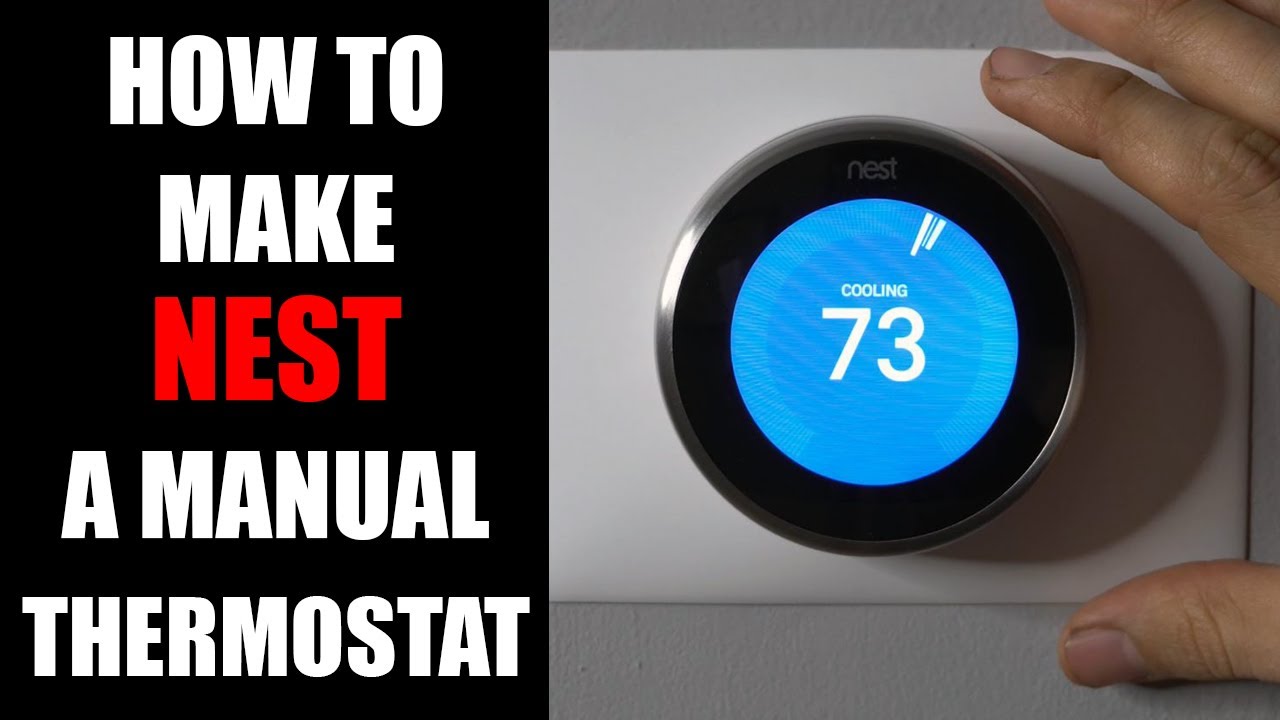
Credit: www.youtube.com